Как использовать устройства для разных регионов в приложении Mi Home, а так же добавлять устройства сторонних брендов?
4 min readHow to Use Smart Home Devices with Mi Home App Across Different Regions

Handling Regional Restrictions in Mi Home App
Option 1: Install Two Versions of the Mi Home App
- Install the Official Mi Home App:
- Download and install the Mi Home app from the official app store.
- Set the region to China for devices that only work with the Chinese server.
- Create clone for Mi Home App: (this is not works for Apple users, there only one option is switching regions in the Mi Home app)
- If you are using Xiaomi smartphone with MIUI shell, go to Settings -> Apps -> App Clone and select Mi Home app. In result, you will have 2 independent Mi Home apps, where you can set different regions.
- On other Android smartphones you can install third-party application for app clone.
Option 2: Use a Region-Free modified Mi Home App
- Uninstall the official Mi Home app.
- Download a modified version of the Mi Home app that supports multiple regions from a trusted source.
- Enable installation from unknown sources in your phone settings.
- Install the modified app and feel free to use devices designed for different regions
Integrating Tuya Devices with Mi Home System
Method 1: Use Home Assistant
- Install Home Assistant:
- Set up Home Assistant on a compatible device (e.g., Raspberry Pi, server). Here is the example how to run Home Assistant in router.
- Add Tuya Integration:
- In Home Assistant, go to Configuration > Integrations.
- Click on Add Integration and search for Tuya.
- Follow the prompts to log in with your Tuya account and link your devices.
- Add Mi Home Integration:
- Similarly, add the Mi Home integration to Home Assistant.
- Link your Mi Home account and devices. In the link above you can read about Xiaomi Gateway 3 integration project, which allows to add and manage all existing Mi Home devices by Home Assistant.
- Create Automations:
- Use Home Assistant to create automations that involve both Tuya and Mi Home devices, allowing them to work together seamlessly.
Method 2: Use Google Home
- Link Mi Home to Google Home:
- Open the Google Home app and go to Add > Set up device > Works with Google.
- Search for Mi Home and follow the prompts to link your account.
- Link Tuya to Google Home:
- Similarly, link your Tuya account to Google Home.
- Control Devices via Google Home:
- Use Google Home to control both Tuya and Mi Home devices through voice commands or the Google Home app.
Aqara G2H Smart Camera IP Video camera 1080P HD Ga

Aqara G2H Smart Camera IP Video camera 1080P HD Gateway HUB Edition Night Vision Mobile wifi Zigbee mihome app For Apple homekit
From $67.01 + shipping
Choose and buyНовинка: Bluetooth термометр XIAOMI Mijia 2 с бесп
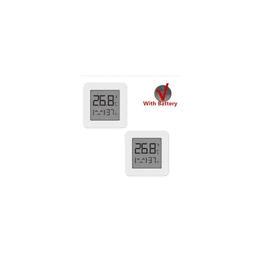
XIAOMI Mijia Bluetooth Thermometer 2 - компактная беспроводная метеостанция, ведущая измерение температуры и влажности воздуха в помещении
From $5.54 + shipping
Choose and buyБлок управления Xiaomi Intelligent Multimode: умны
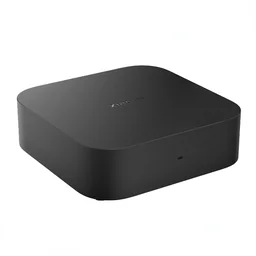
Xiaomi Center Gateway Intelligent Multimode Smart Home Hub 2.4GHz 5GHz Wifi Bluetooth 5.0 Mesh 4GB OTA RJ45 Work with Mijia_
From $72.11 + shipping
Choose and buyДатчик присутствия FP2 Aqara: определение зоны, об
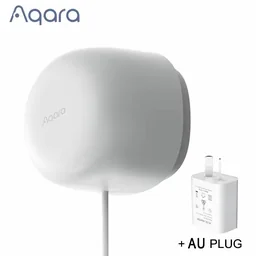
Aqara Presence Sensor FP2 Zone Positioning Fall Detection and Alerts for Smart Home Work With HomeKit Aqara Home APP
From $73.99 + shipping
Choose and buyОригинальный Xiaomi Mi Smart Socket 2: плагин-мост
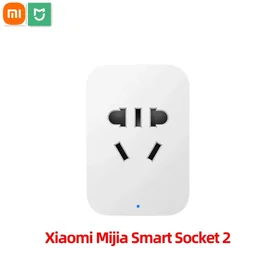
Original Xiaomi Mi Smart Socket 2 Plug Bluetooth Gateway Version Remote Control Works With Xiaomi Smart Mi Home Mijia App - Smart Remote Control
From $30.19 + shipping
Choose and buy
Смарт-сенсор для человека Xiaomi Mijia 2S с высоки
Xiaomi Mijia Smart Human Body Sensor 2S High Sensitivity luminance Detection Motion Sensor Intelligent Device linkage Smart home
From $19.64 + shipping
Choose and buy